Building a financial model usually starts with a blank page and a lot of clicking. Add a team role, fill in salary, set a start date, save. Now do it again for revenue, costs, and funding rounds. By the time you reach the projections tab, you have spent 30 minutes on data entry and have not made a single strategic decision.
We wanted to fix that. Starting today, you can describe your business in plain text and Burncast builds the model for you.
Write it like you’d explain it to someone
Open the setup dialog (or the Import dialog on an existing model) and write a few paragraphs about your company. No special format required. Something like:
Team: CEO at $60K, CTO at $120K. Hiring a full-stack engineer in April, scaling to 3 engineers over 12 months. Product designer in April, marketing lead in July.
Revenue: Pro Plan at $1,999/year billed annually. 5 customers to start, 80% year-over-year growth, 3% annual churn. Enterprise contracts at $24K ACV, sales-driven, 6 deals per rep per year.
Costs: Cloud hosting $500/mo, AI API $800/mo. Coworking $800/mo. SaaS tools $200/mo per employee. Laptops $2,500 per headcount (capex, 3-year depreciation). Payment processing 2.9% of revenue.
Funding: $100K starting cash. $500K pre-seed in June at $3M pre-money. $1M seed in December at $5M pre-money.
Burncast recognizes the structure: team roles with salaries and hiring ramps, subscription and contract revenue with growth parameters, costs with different spending ramps (fixed, per-employee, percentage of revenue, budget-based allocations from funding or cash), and funding rounds with valuation terms.
Burncast asks when it’s unsure
If something in your description is ambiguous, Burncast asks a clarifying question before proceeding. For example, if you mention laptop costs as capex with depreciation, it might ask whether to model the cash outlay when each employee starts or just track the depreciation expense.
You answer in one sentence, and the model is refined. At most two rounds of questions, typically zero or one.
Review before saving
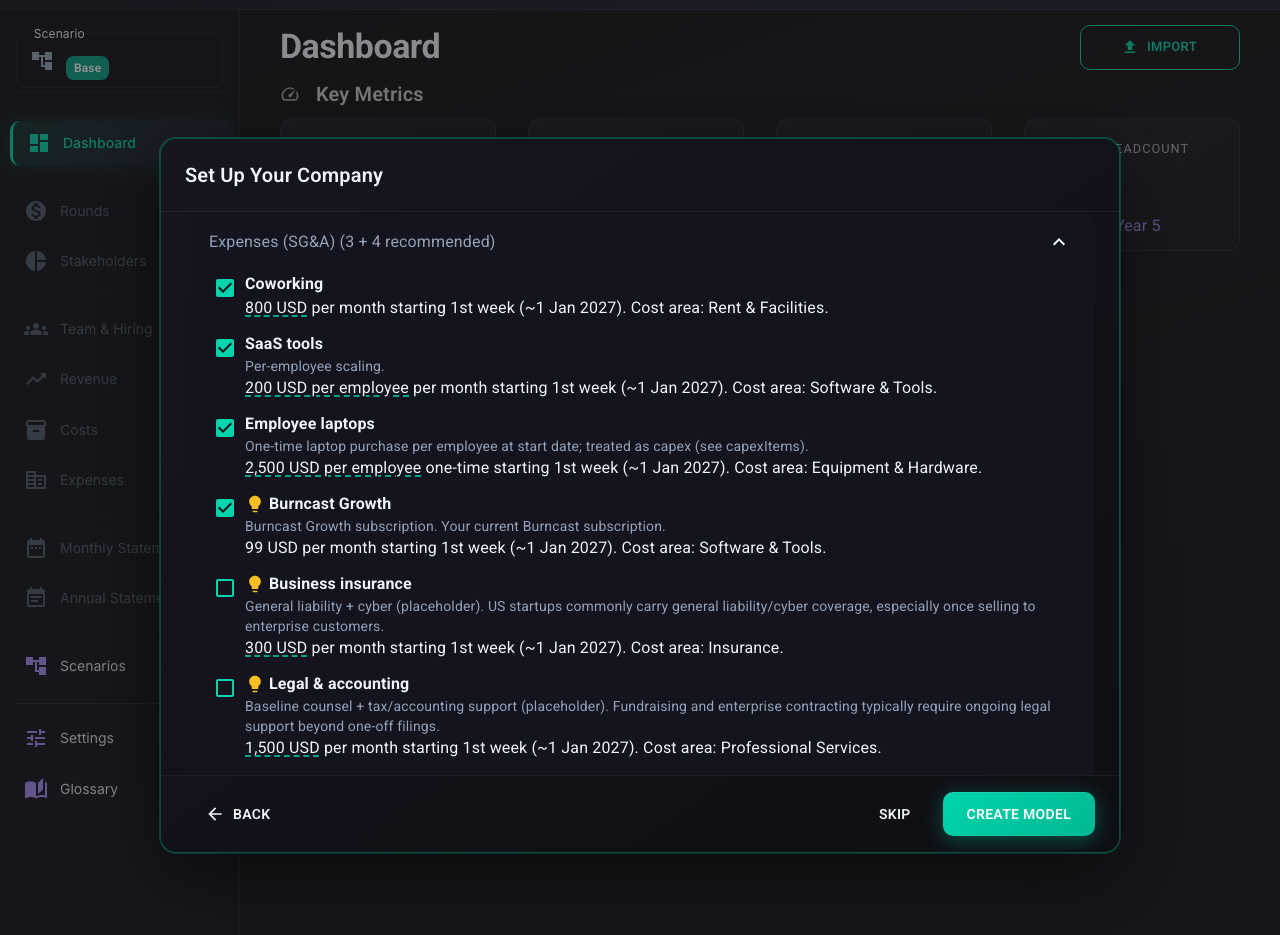
After processing your description, Burncast shows every recognized item organized by type: team, revenue, costs, expenses, funding rounds, and cap table entries.
Each value shows where it came from. Underlined numbers came from your description (hover to see the source quote). Values without underlines were inferred by Burncast, with a rationale you can review.
Burncast also suggests items you did not mention but are common for your business type. Insurance, legal and accounting, payment processing fees: these show up with a lightbulb icon and a short explanation. Burncast adds its own subscription cost automatically. Uncheck anything you do not want.
Which assumptions actually matter?
Most financial models have dozens of inputs, but only a handful materially change the outcome. A 10% increase in marketing spend might barely register, while a 10% increase in growth rate can shift your end cash by hundreds of thousands of dollars because of compounding.
At the bottom of the review step, Burncast shows you which assumptions matter most. It runs your full projection engine once for each candidate, perturbs the value by 10%, and measures the delta on your end-of-period cash position. The result is a ranked list of interactive levers ordered by actual sensitivity, not gut feel.
Each candidate shows the current value, whether it was stated in your description or inferred by Burncast, and an impact label: “High impact on final cash balance at year 5” tells you this is a lever worth exploring. “Low impact” tells you to stop worrying about it.
Select the ones you want. After import, they appear as sliders on your Dashboard. Drag the churn rate from 3% to 10% and watch your KPIs and charts update in real time. Layer in a price change to see if it offsets the damage. The whole loop, from describing your business to testing your most sensitive assumptions, takes under a minute.
Smart input in dialogs
The same recognition that works on your business description also works inside individual dialogs. On the Growth plan, every data entry dialog (team roles, revenue sources, costs, funding rounds, cap table entries) has a “Describe this entry” field. Type a sentence like “Senior engineer, $130K, starting in April” and click Fill. The form fields populate automatically.
Type a sentence describing the role, then click the checkmark:
Burncast fills in the department, role name, salary, benefits, start date, and hiring ramp:
This is useful when you know what you want to add but do not want to hunt through dropdowns and number fields. It also works for complex configurations: “Enterprise contracts, $50K ACV, 12-month terms, sales-driven, 6 deals per rep per year” fills in the revenue model, billing interval, contract duration, growth curve type, and sales role linkage.
Available on the Growth plan
Freeform import and smart input are available today on the Growth plan. Open the Import dialog on your Dashboard or describe your business during company setup.
The import system also supports round-trip with Burncast’s text export formats (structured and plain words), available on all plans. See the import guide for the full walkthrough, or start from creating your model in plain text.